So, all of you might have heard about some tools to change MAC address on a windows machine, but a few of us know that we don’t need a third party application to change MAC address on Windows 10. So, I’ll tell you how to change your MAC address without any third party software.
So, there ain’t anything other than your PC that you’ll need for this. Just follow these simple steps and you’ll be able to change the MAC address of your network card which you can try for both the ethernet and the wireless card.
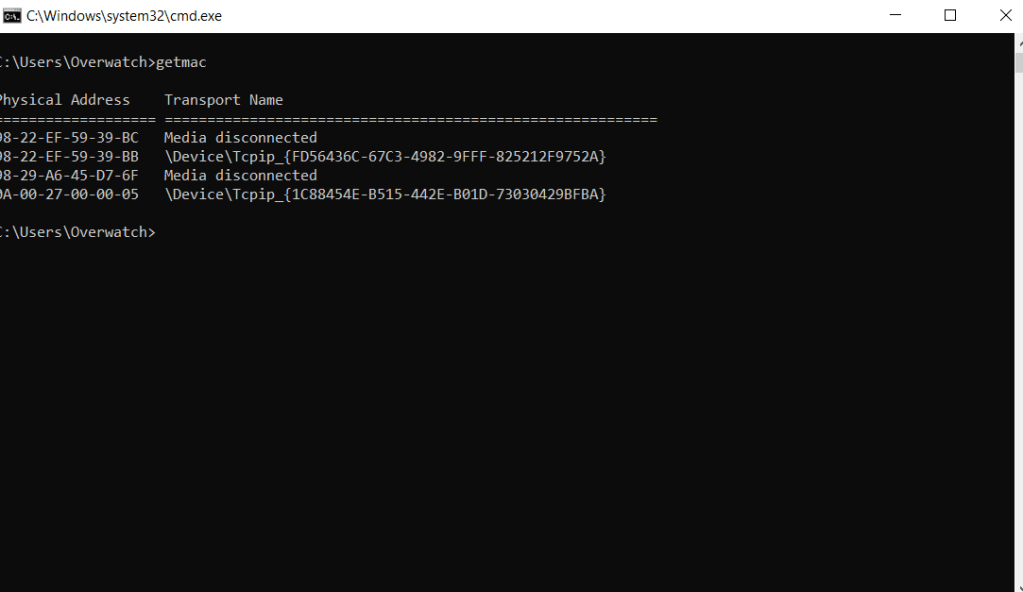
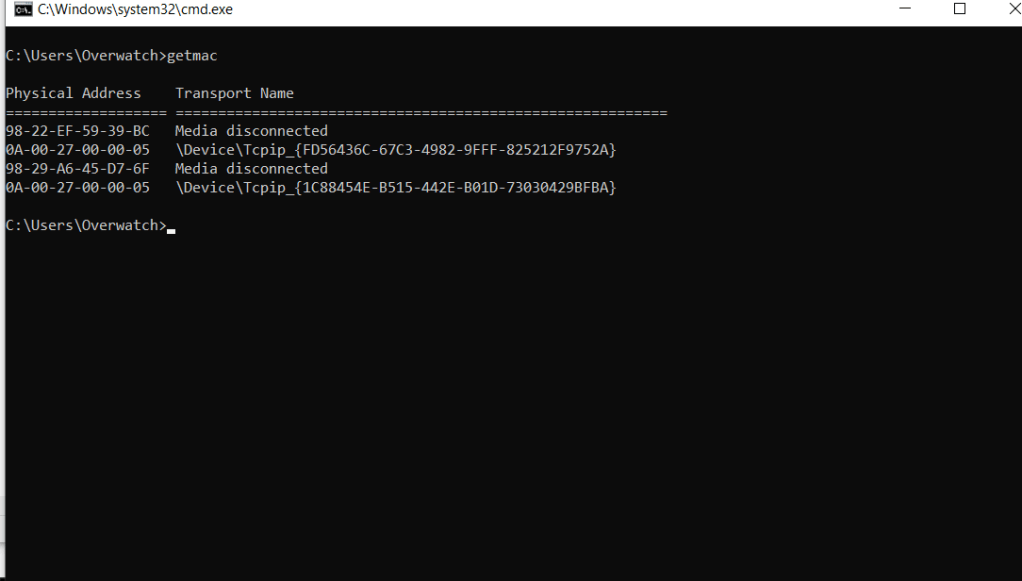
- So, first let’s check the default MAC address of our network card by typing the getmac command in the cmd. You’ll see the result like this:
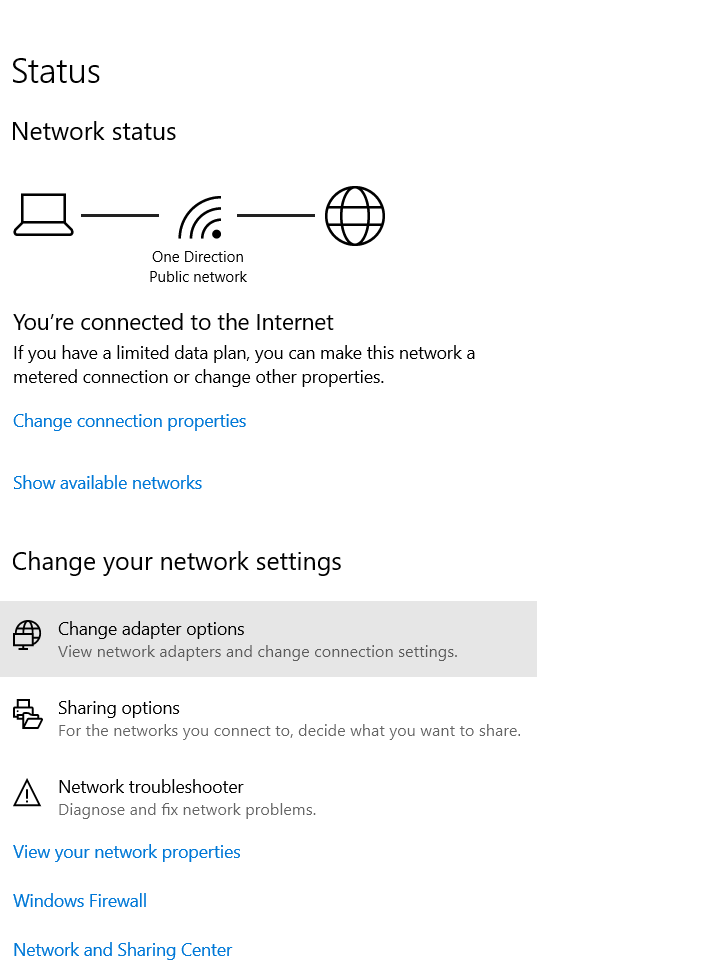
- Open the Network and Internet settings.
- Select Change the adapter options as shown in the image below:
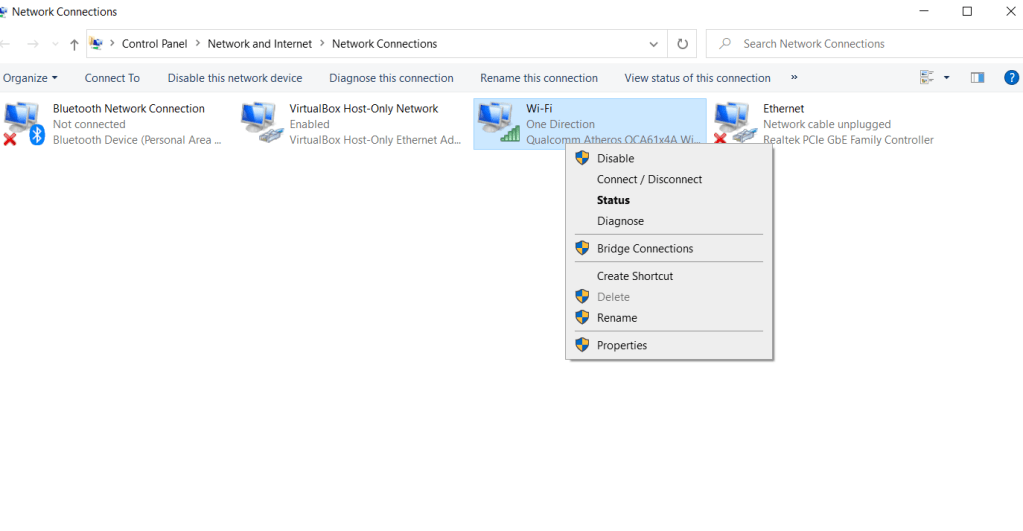
- Now, right-click on the network you want to change the MAC address for and select properties.
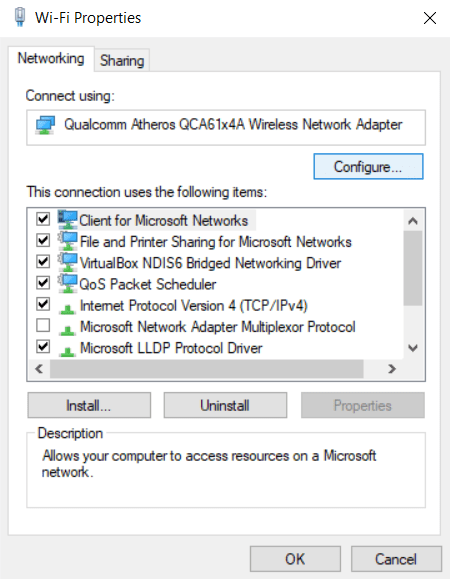
- Now, you’ll see the various options related to your network card. Click the configure button.
- Now select Network Address and you’ll have two options: a Value option with an empty text field and a Not Present option marked by default.
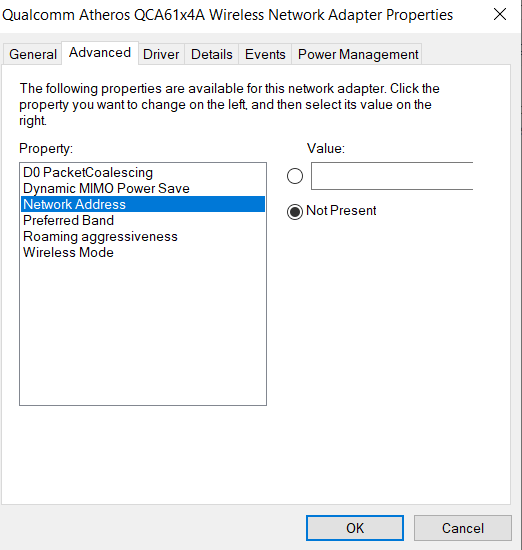
- All you have to do is paste the 12 digit MAC address you want to change to in the text field without any space or hyphen or colon in the following format :
aabbccddeeff
- Now when you click the ok button, it will take a few seconds and your MAC address will change. Now, you can check if you succeeded by running the getmac command in the cmd and you’ll see the MAC address you wanted to change to!
One important thing I want you to know is that the traditional MAC address is a 12 digit hexadecimal number which can be broken down into two parts:
The leftmost 24 bits or the first 6 digits, called prefix, are associated with the adapter manufacturer while the rightmost 24 bits represent the identification number for the specific device.
The first 24 bits of a particular vendor are registered and assigned by IEEE. So, if you think you can use any random hexadecimal digits, you will not succeed. Most devices will not accept the MAC address or if they accept, you’ll not be able to use the internet. So, while changing the MAC address, be sure you are using the first 6 digits of a particular vendor!
In case you face any problem, you can contact me on the links provided at the end or you can tell me in the comments.
 Singh-jp-7
Khub bhaalo
LikeLike